Build a Real-Time Voice Agent with Memory! End-to-End Tutorial Using TEN Framework + memU


Introduction
Real-time voice models make it easy to build agents that can speak and respond instantly. But a truly useful voice agent needs more than real-time interaction — it needs memory. In this tutorial, you’ll build a real-time voice agent with memory, powered by TEN Framework and memU, that remembers your name, preferences, and past conversations. Follow the steps and you’ll have a fully running agent locally in minutes.
What You Will Build
With this real-time voice + memory pipeline, you can extend the agent into:
- AI companion / emotional support agent
- Language-learning or speaking-practice tutor
- Customer support or sales voice agent
- VTuber / character-based interactive agent
- Outbound calling agent
By the end of the tutorial, you will have a fully running real-time voice agent with cross-session memory, ready to be customized into these scenarios.
Overview
In this tutorial, you will run a TEN Agent locally and extend it with memU memory. The flow looks like this:
User
 │ (live audio)
 ▼
TEN Framework
 ├─ VAD / Turn Detection
 ├─ ASR (OpenAI Realtime)
 ├─ LLM Reasoning
 ├─ Memory Retrieval (memU → TEN)
 ├─ Memory Storage (TEN → memU)
 └─ TTS (OpenAI Realtime)
 ▼
User
- TEN Framework handles all the real-time voice orchestration: capturing audio, detecting turns, streaming to the model, and sending responses back.
- memU provides long-term memory, so the agent can recall user details and past sessions instead of starting from zero every time.
Together, they give you a real-time, memory-enabled voice agent that you can turn into many different products.
Operating Steps
Now let’s bring the full agent online. Follow the steps exactly and you’ll be able to talk to your agent in minutes. This tutorial uses Docker to run the TEN agent and memU integration in a consistent environment.
1. Clone the repository
git clone https://github.com/TEN-framework/ten-framework.git
cd ten-framework/ai_agents
2. Copy the example environment file
cp .env.example .env
3. Fill in the required keys
Open .env and fill in the following values (keep only the providers you actually use):
# Agora (required for audio streaming)
AGORA_APP_ID=your_agora_app_id_here
AGORA_APP_CERTIFICATE=your_agora_certificate_here

# Voice-to-Voice Model Provider (choose one)
OPENAI_API_KEY=your_openai_api_key_here
# OR
AZURE_AI_FOUNDRY_API_KEY=your_azure_api_key_here
AZURE_AI_FOUNDRY_BASE_URI=your_azure_base_uri_here
# OR
GEMINI_API_KEY=your_gemini_api_key_here
# OR
GLM_API_KEY=your_glm_api_key_here
# OR
STEPFUN_API_KEY=your_stepfun_api_key_here

# Memu Memory Service
MEMU_API_KEY=<MEMU_API_KEY>
4. Start the containers
From the project root:
docker compose up -d
5. Start and Configure the Development Container
5.1 Attach to the dev container
docker exec -it ten_agent_dev bash
5.2 Configure tman Registry
mkdir -p ~/.tman && echo '{ "registry": { "default": { "index": "https://registry-ten.rtcdeveloper.cn/api/ten-cloud-store/v1/packages" } }}' > ~/.tman/config.json
5.3 Configure Go Proxy
export GOPROXY=https://goproxy.cn,direct
5.4 Configure Python/pip Proxy
pip config set global.index-url https://pypi.tuna.tsinghua.edu.cn/simple
export UV_INDEX_URL=https://pypi.tuna.tsinghua.edu.cn/simple
5.5 Select the example agent and run
task use AGENT=agents/examples/voice-assistant-companion
task run
6. Open the web UI
Once the agent is running, open your browser and go to:
http://localhost:3000
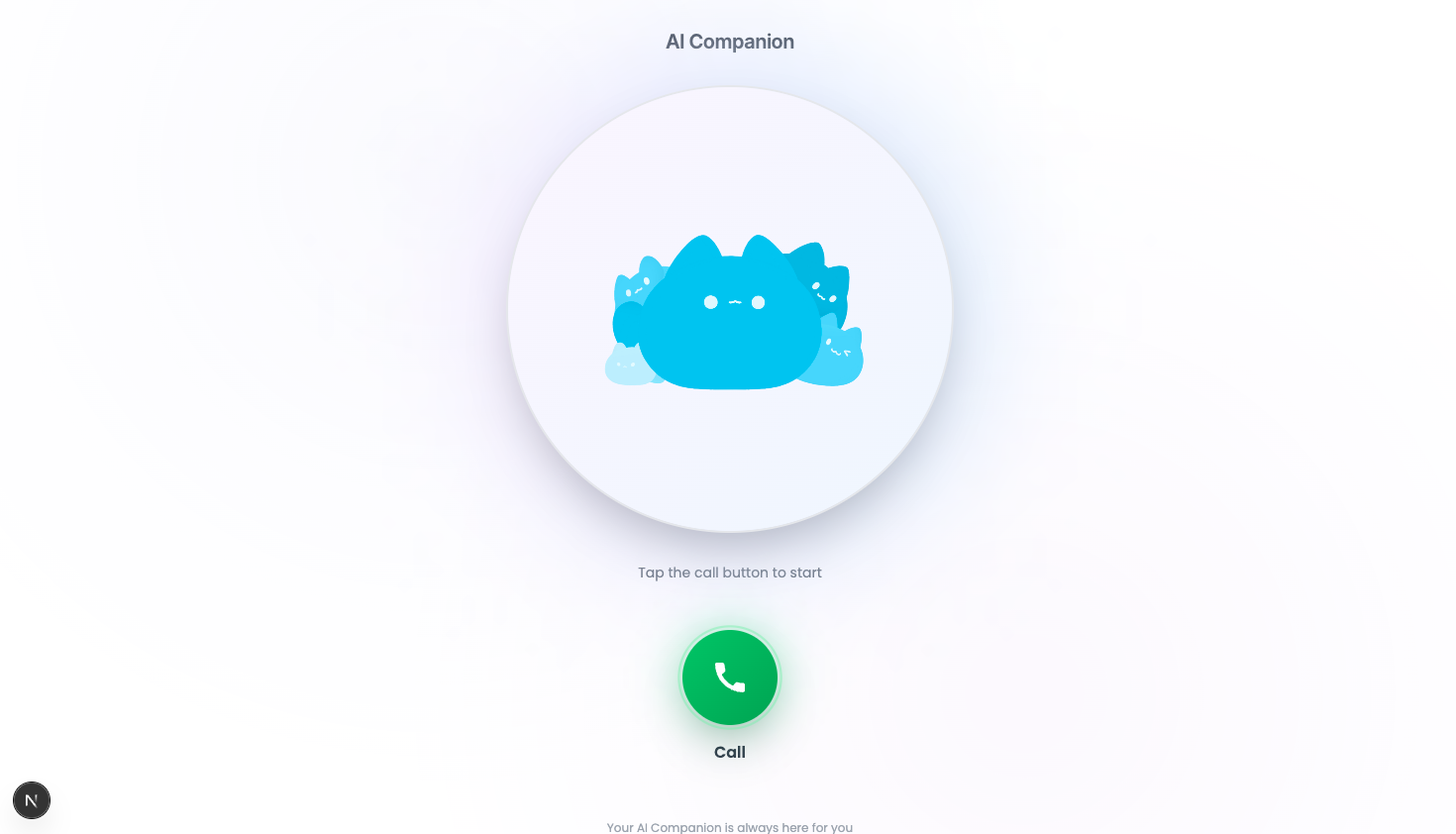
You should see the voice assistant UI.
7. Verify the UI
If everything is set up correctly, you should see the following UI interface. 🎉
8. Start a call
Click “Call” to start a conversation with your voice assistant. After you hang up, the system will begin storing the conversation as memory.
9. Test the memory
Try reconnecting to the agent and asking about your previous conversation, for example:
- “What did I tell you about my favorite food?”
- “Do you remember my name?”
The agent should answer using the stored memories.
10. View memory in the memU dashboard
You can log in to the memU dashboard at any time to view the stored memory tasks and how they are organized.
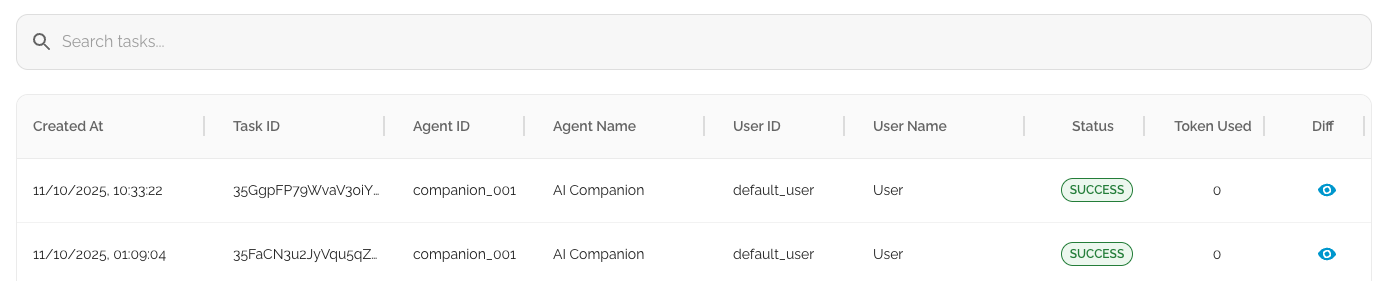

You can also experiment with different prompts to customize and refine your own AI agent.
Further Learning & Related Tutorials
TEN Framework:
👉 GitHub: https://github.com/TEN-framework/ten-framework
👉 Docs: https://theten.ai/docs
memU:
👉 GitHub: https://github.com/NevaMind-AI/memU
👉 Cloud service: https://app.memu.so/
👉 Docs: https://memu.pro/docs